Note
Following the upgrade from Windows 10 to Windows 11, all Microsoft Office products require users to sign into their Microsoft account with their CCAC email and password. After the user signs in, they will be prompted with a Microsoft Multi-Factor Authentication prompt. After authentication, the users can select stay signed in and will not have to sign in to Office again on that computer.
Please remember that you must repeat these steps on every new computer you log in to if you want to use any of the Microsoft Office products.
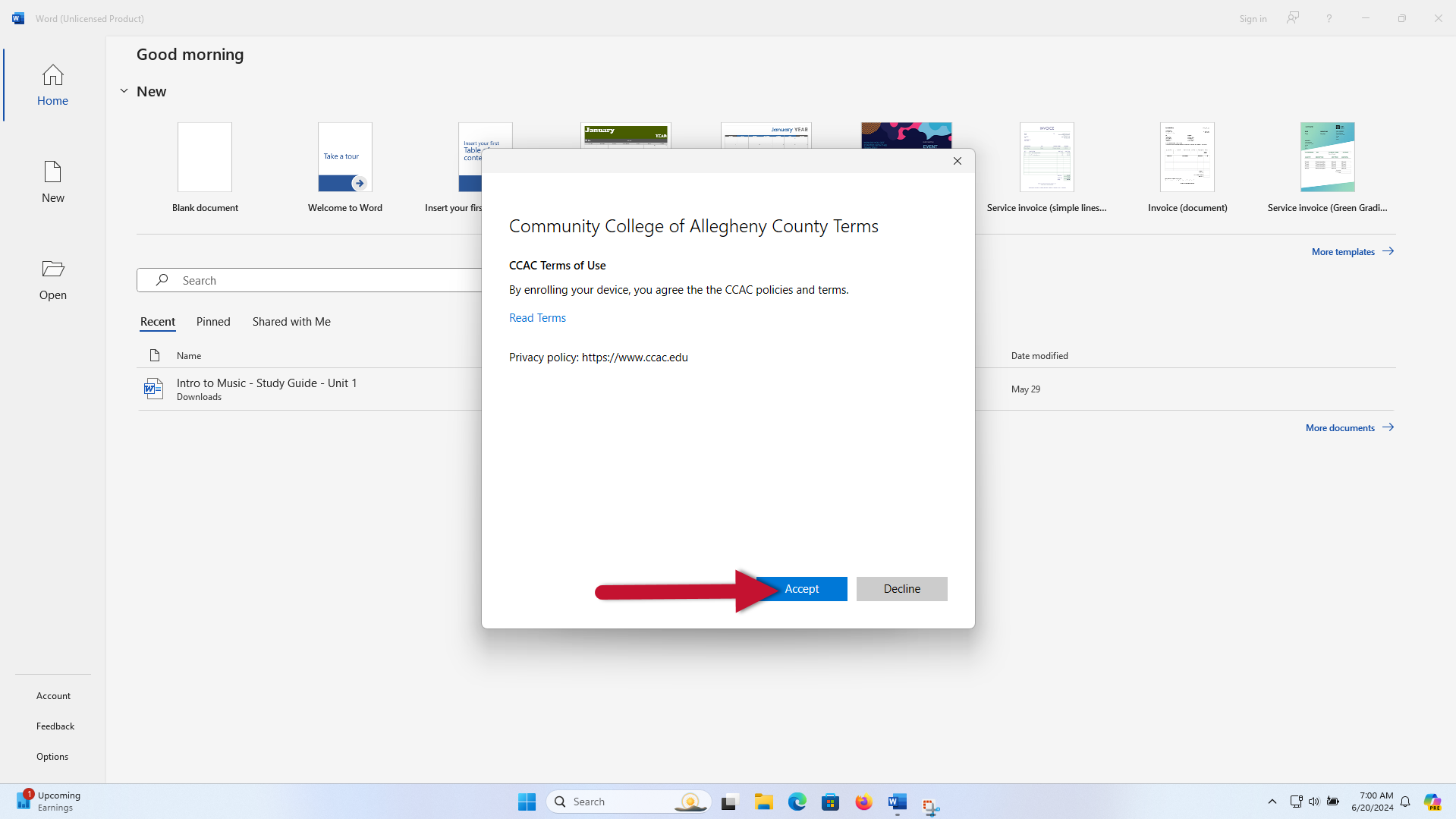
- Open any Microsoft Office product (this can be Outlook, Word, Excel, or PowerPoint). Once you open the application, a window will pop up. Click on sign in or create account
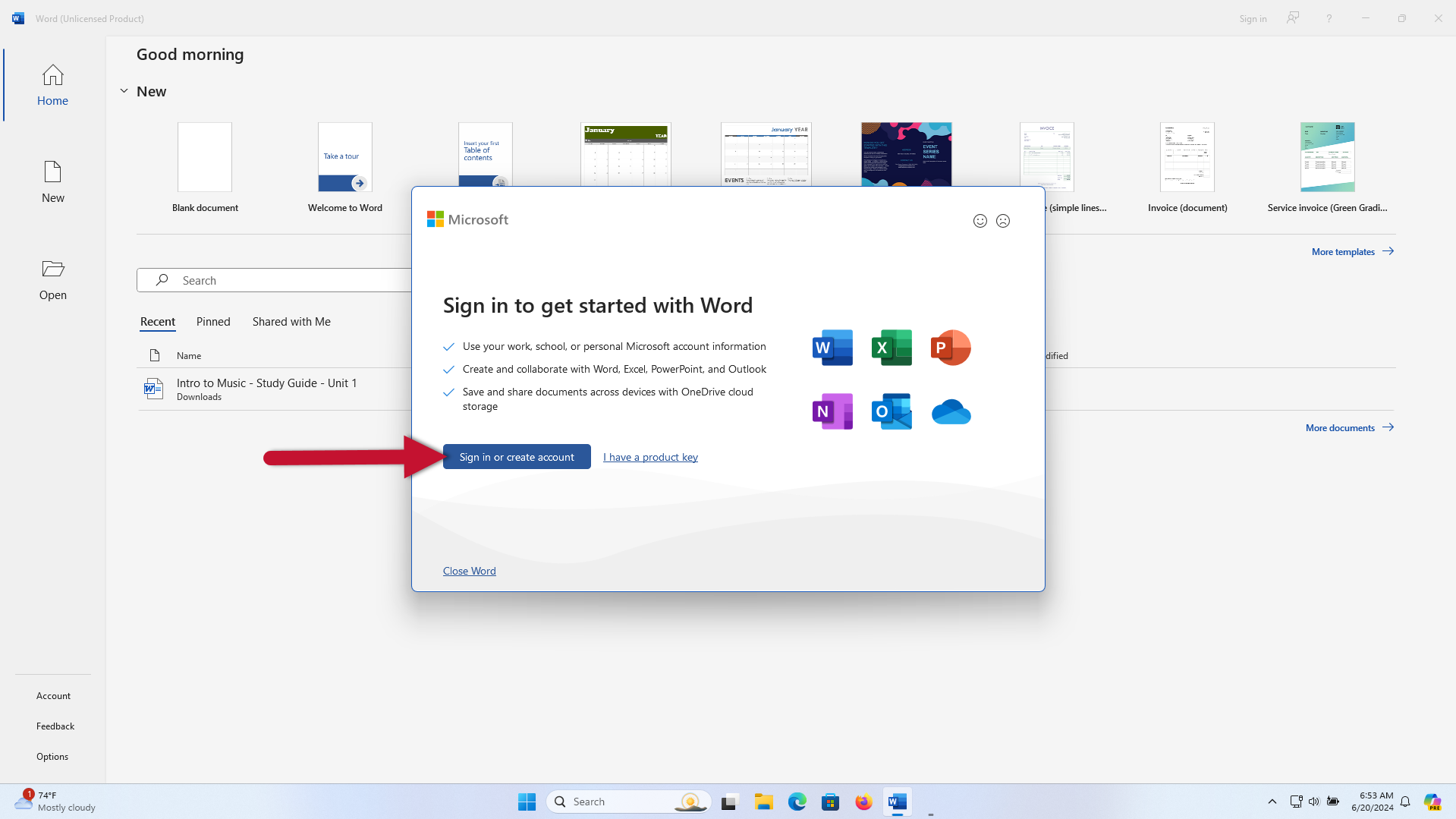
- Type your CCAC email address, then click Next
- You will then be prompted to log in using Microsoft Multi-Factor Authentication (See linked article for login steps)
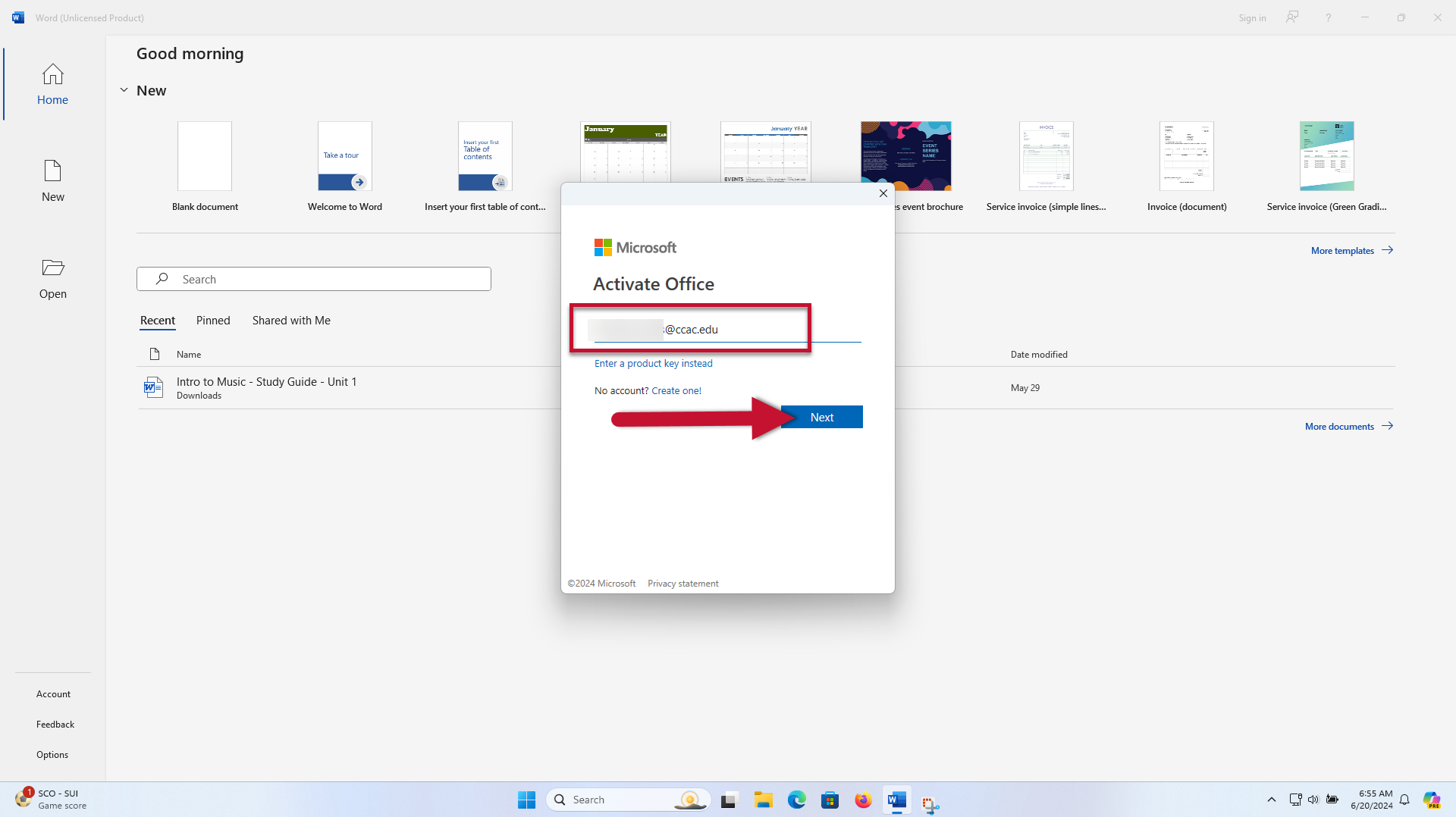
- On the “Stay signed in to all your apps” prompt, make sure the check box is selected, then click OK
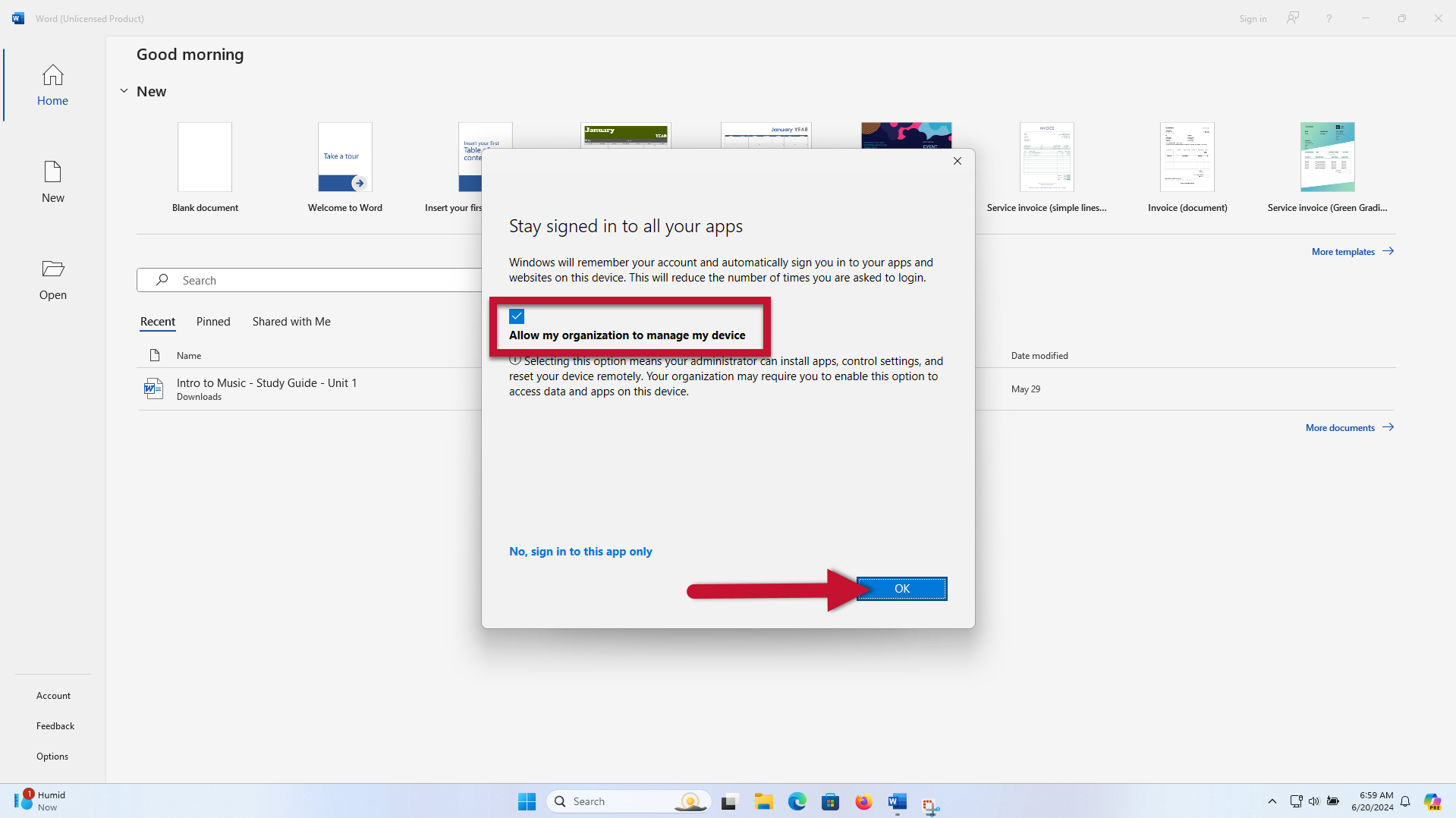
- Click Accept for the CCAC Terms of Use