Why would my Calendar need to be reconnected?
- You may have recently changed your password and it needs updated in Calendly
- Your email was migrated to Office 365
- Go to https://calendly.com/
-
Sign in to Calendly
- Once you log in, Calendly may prompt you to reconnect. If so, after confirming you want to reconnect, skip to step 7
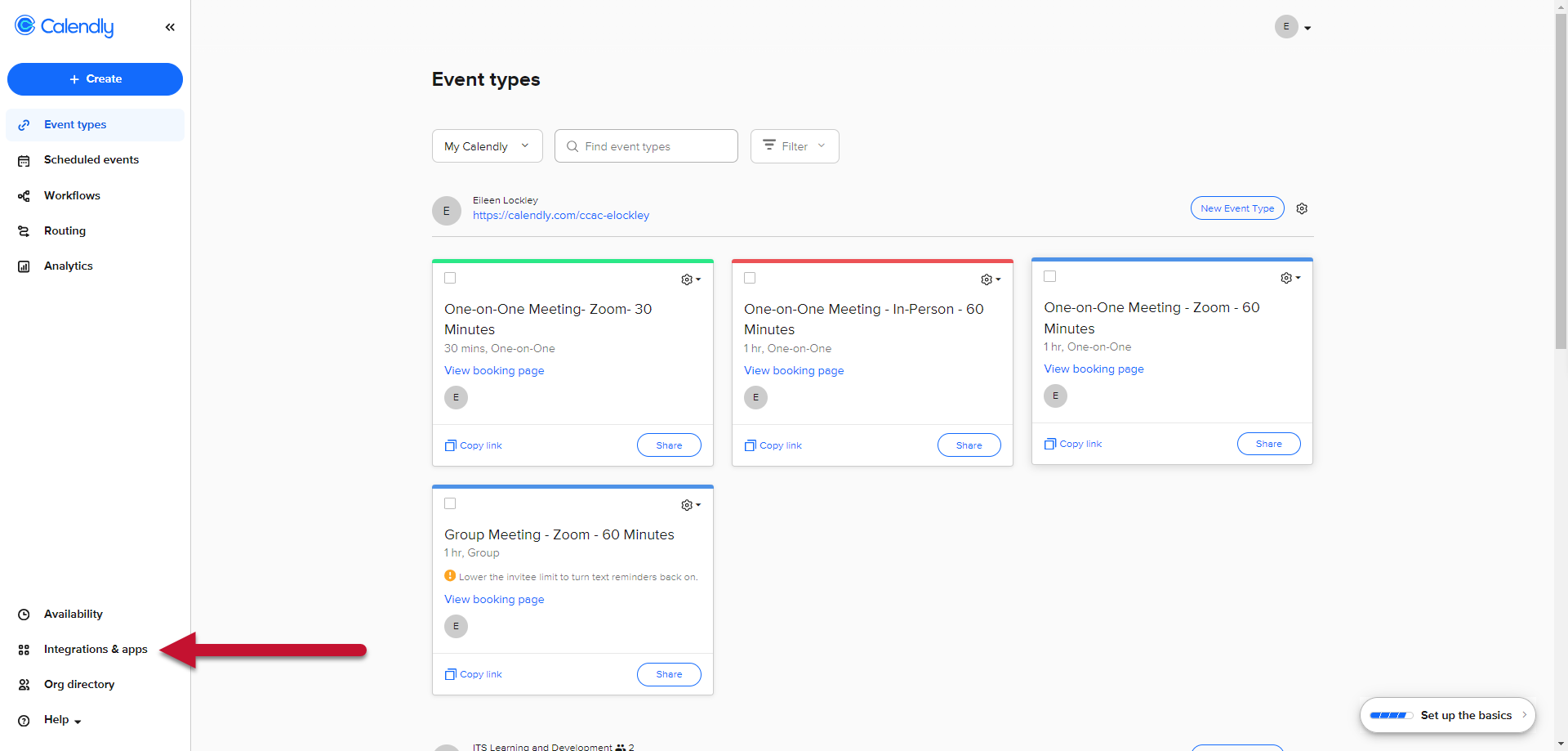
- From the home screen, click Integrations & apps at the bottom left of the page
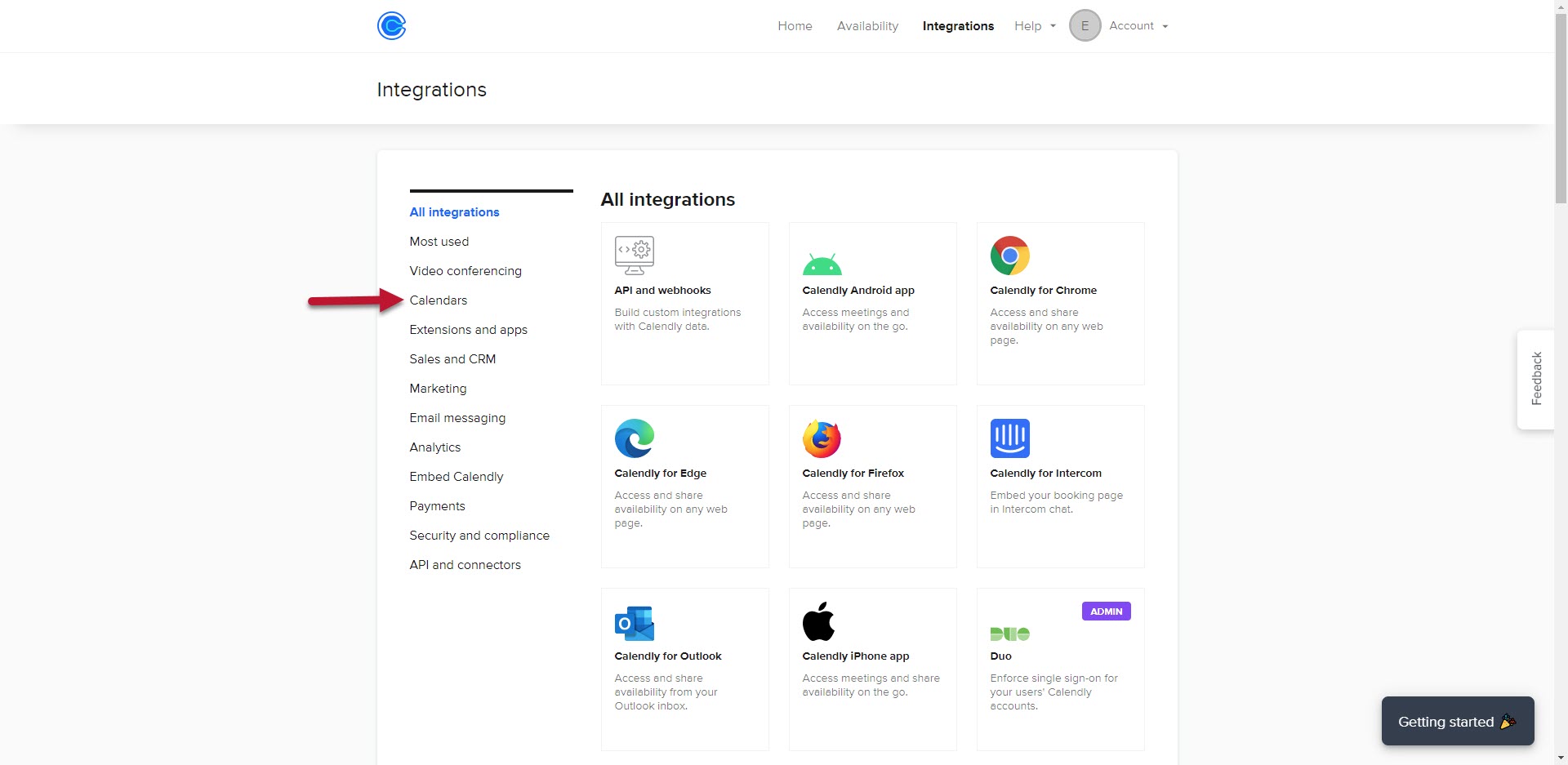
- Click Calendars
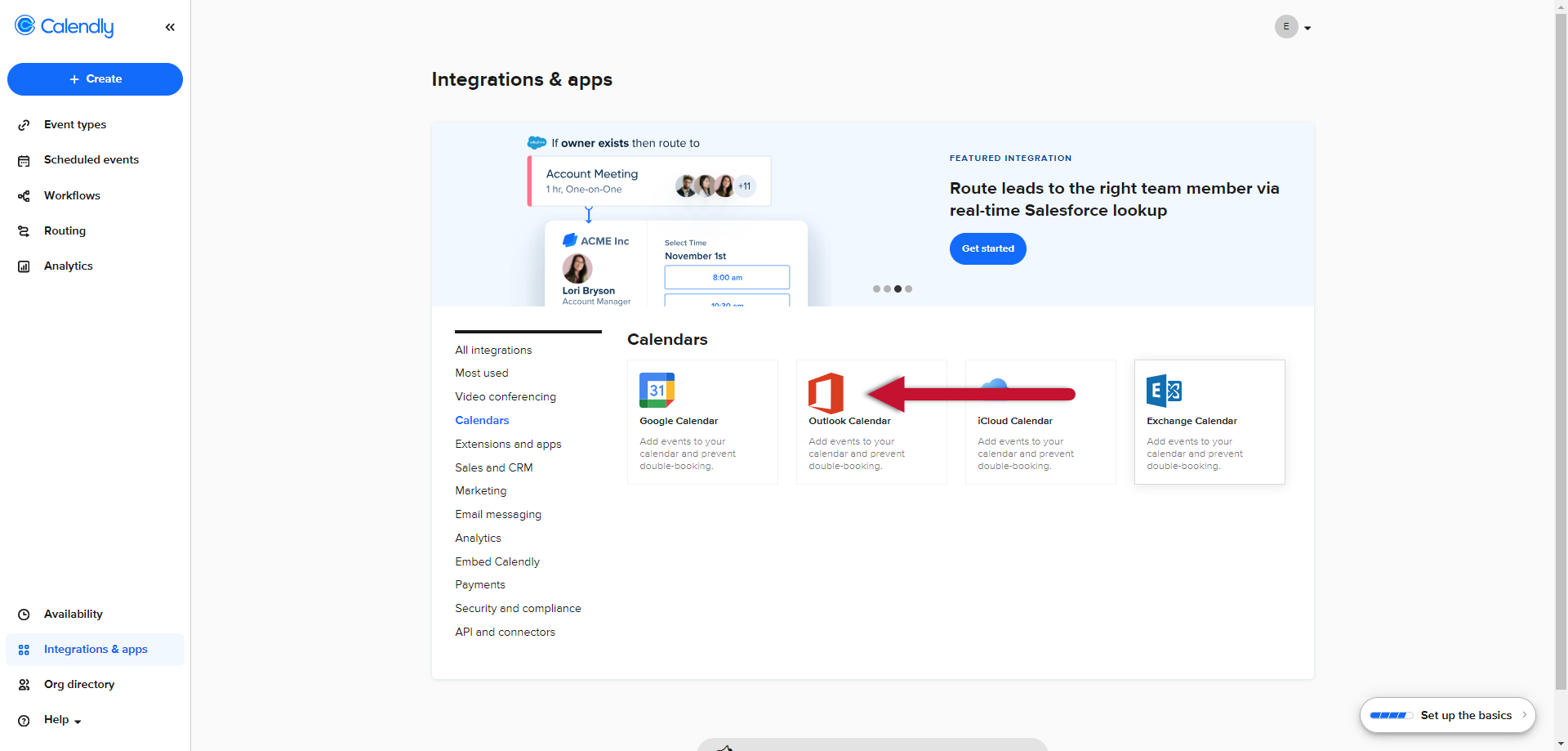
- Select Outlook Calendar
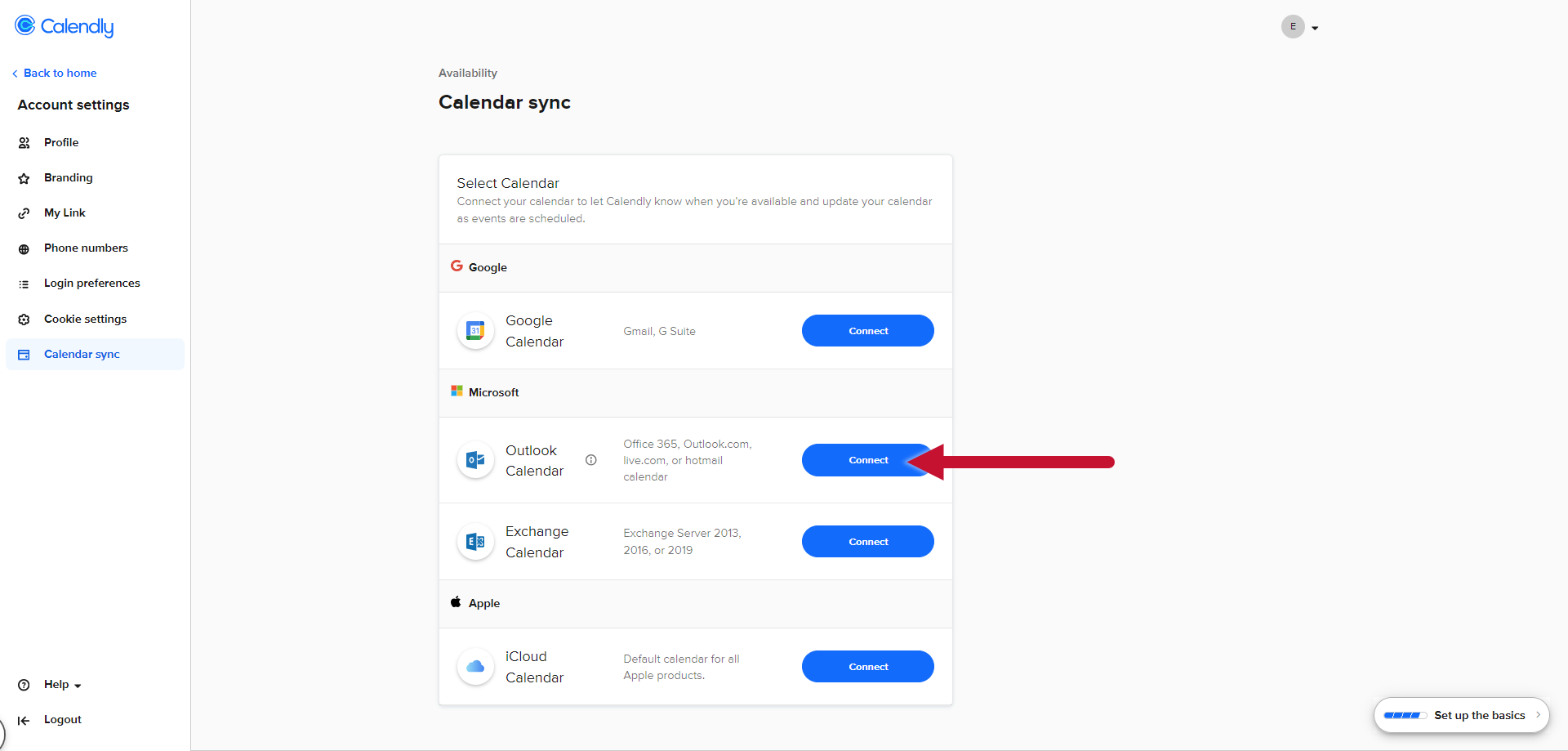
- Choose the Connect or Reconnect button for Outlook Calendar
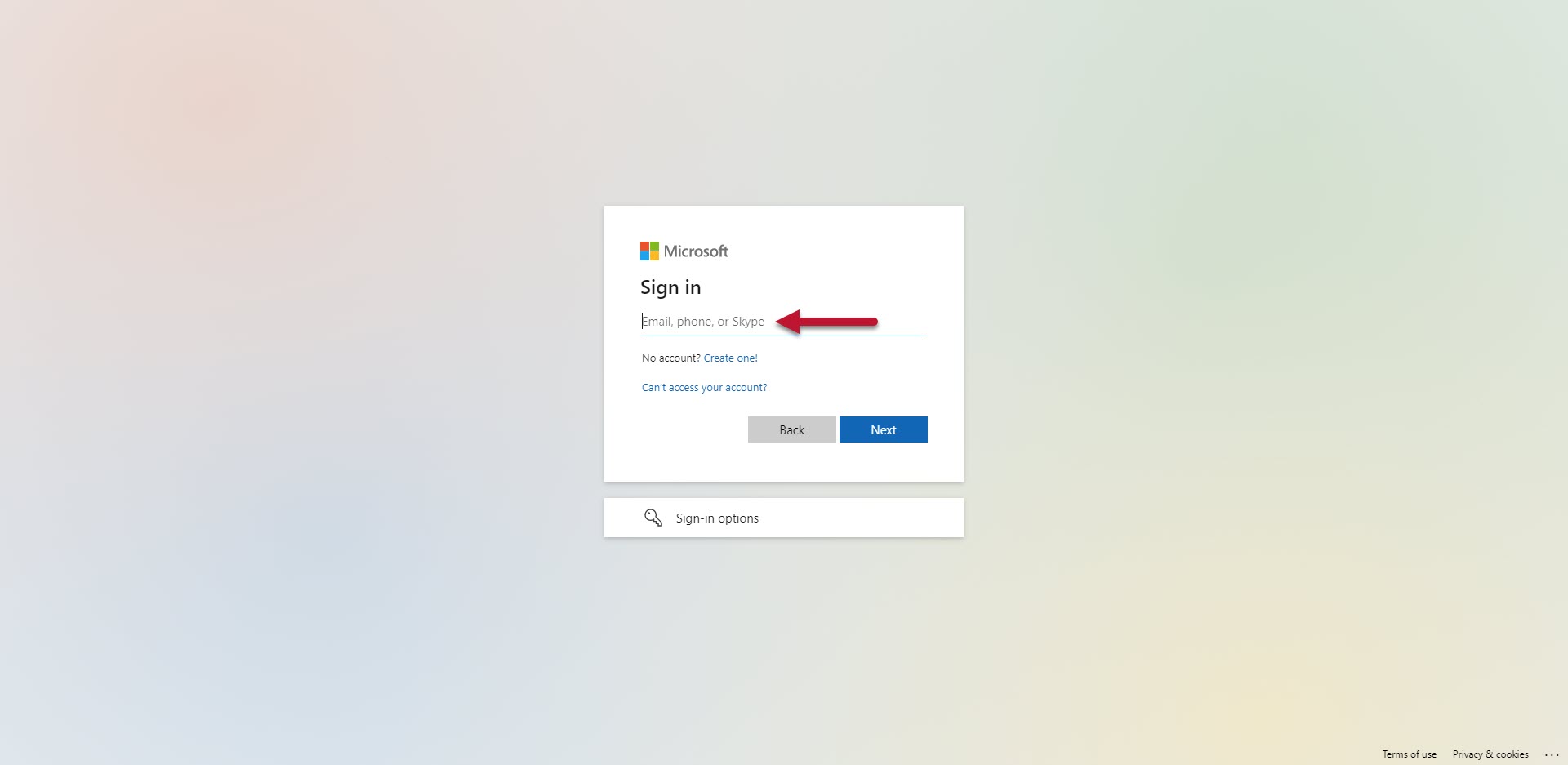
- Enter your CCAC Email in the Email Address field (if it is already populated, select your CCAC account)
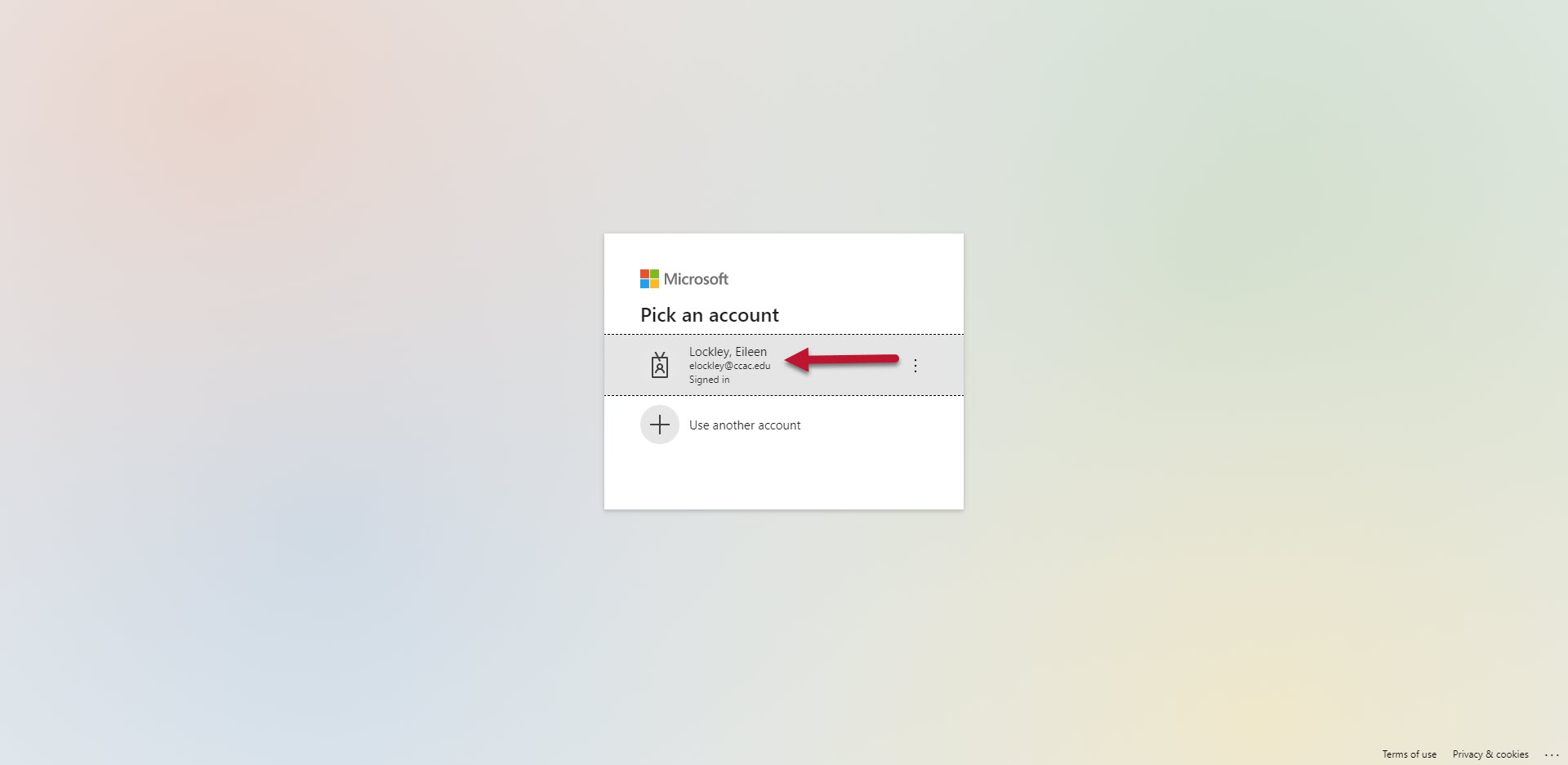
- Enter your CCAC Password
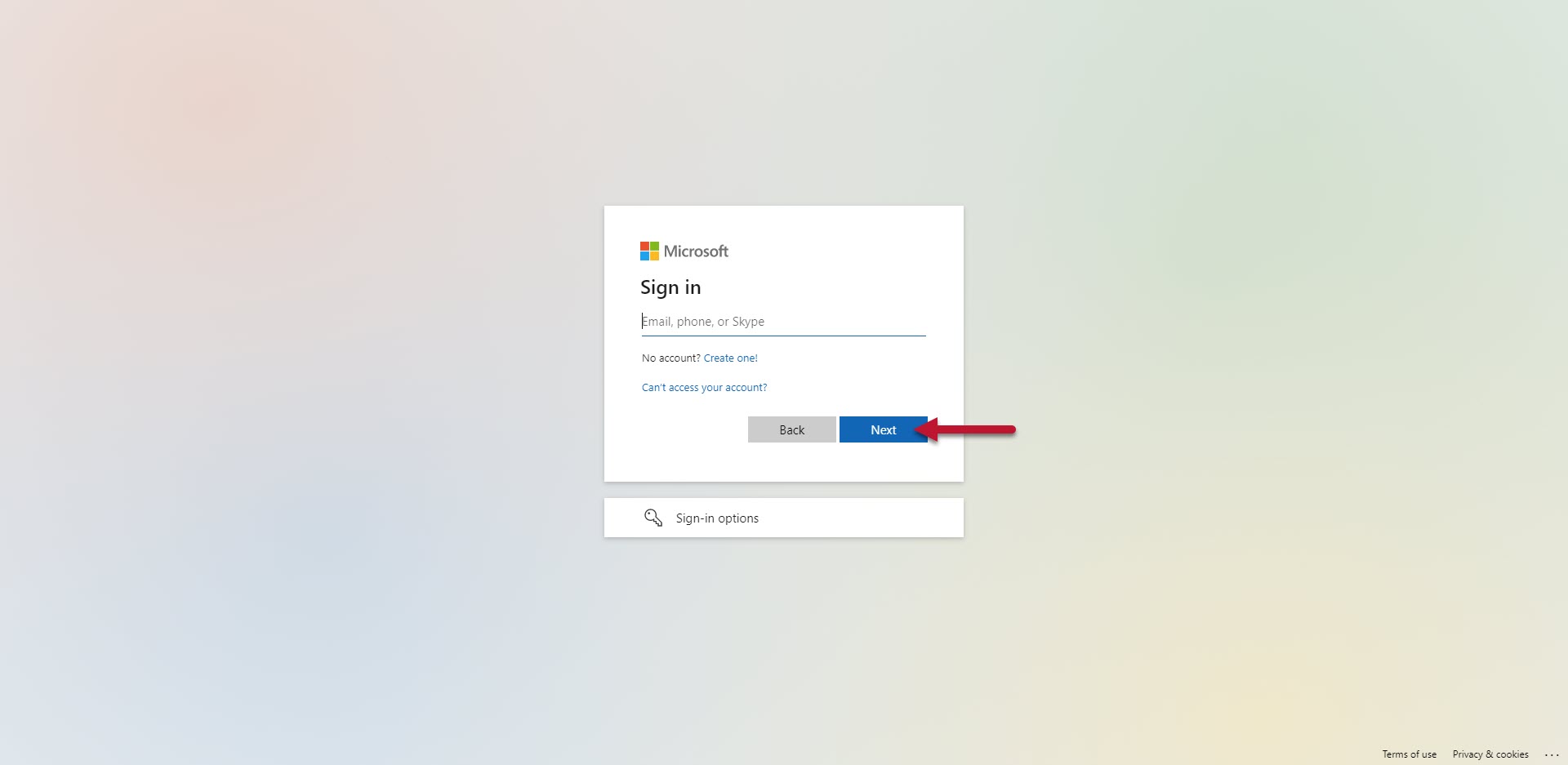
- Click Next
- Confirm the login on yur phone using Multi-Factor Authentication
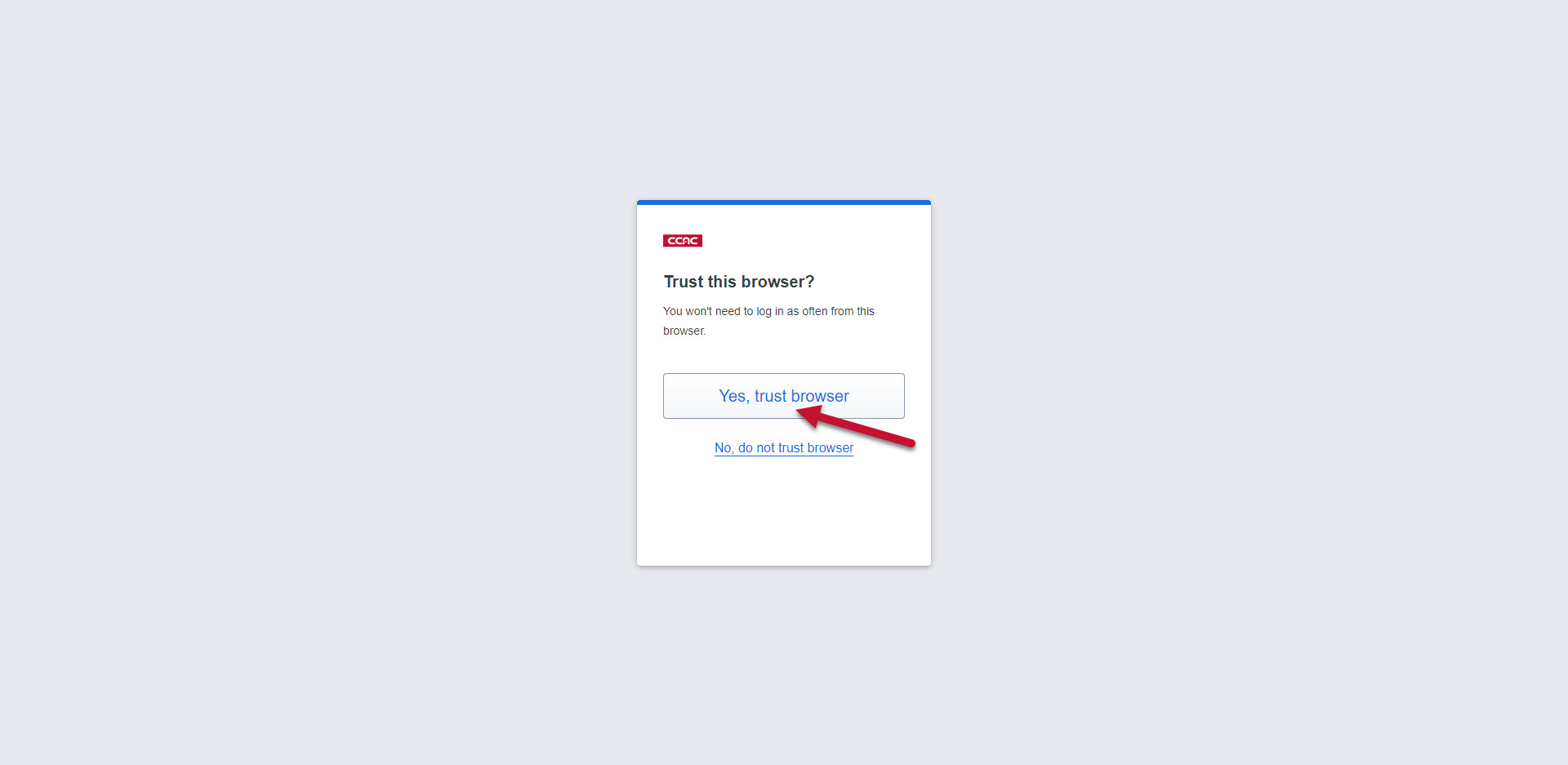
- Click on Trust this browser
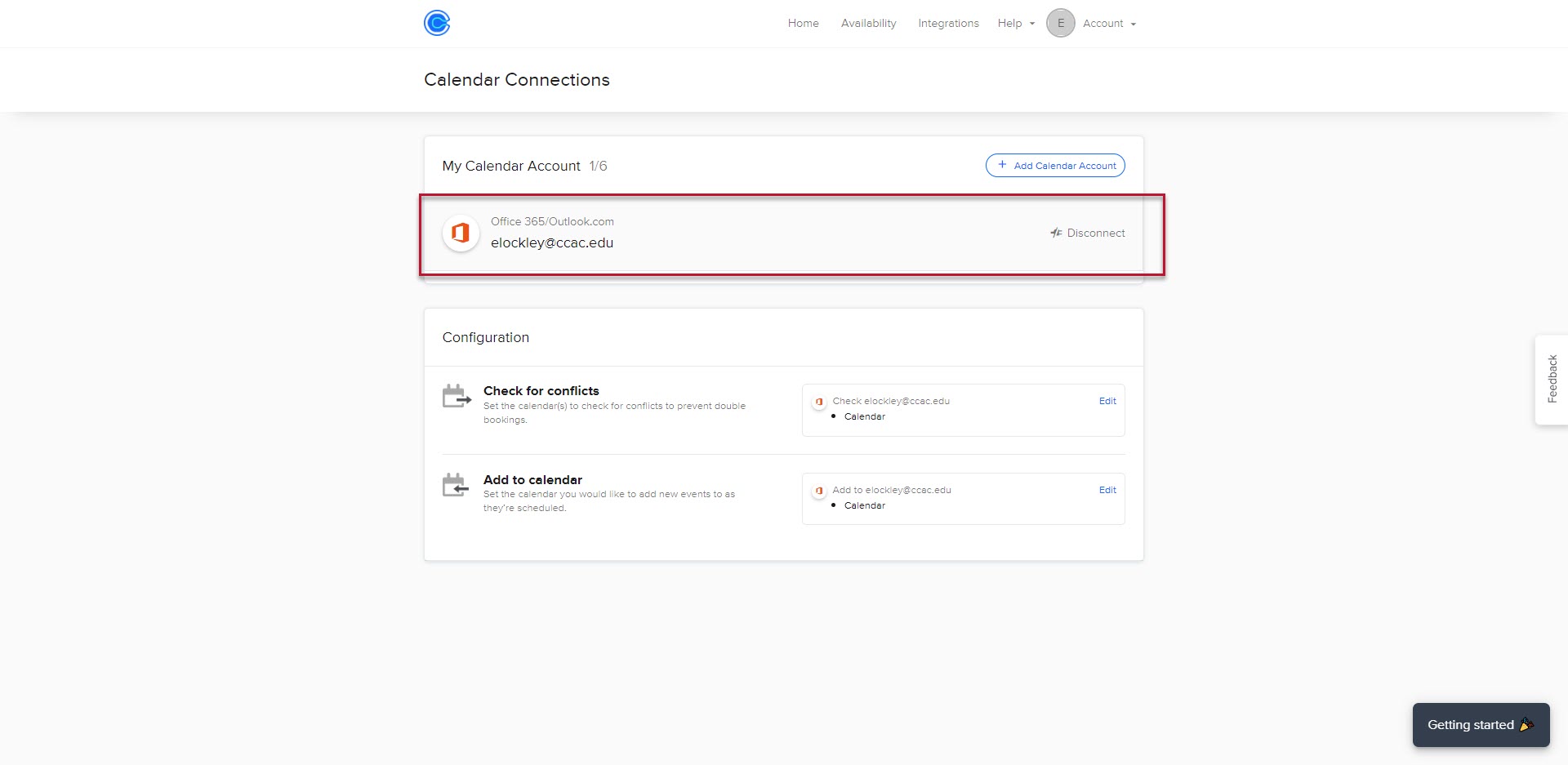
- Verify that your email is linked (Calendar will display a Disconnect option if it successfully connected)
Alternative Way - From the Email
- If you received an email "Your Calendly page has been temporarily deactivated"
- Click the link Log in to reactivate your calendar connection
