What is the Video Call Center?
The video call center is a customized virtual meeting tool. This tool will allow students to meet with CCAC personnel, including advisors, counselors, tutors, and other support staff, using a computer or mobile device through your browser without downloading any additional software. Students can conveniently access the support and resources they need from any location.
Where to find the Video Call Center?
Video Call Center links are available through the relevant tiles in the MyCCAC Hub.
Logging into MyCCAC Hub
- From a web browser, go to my.ccac.edu
- You will get an option to select a profile

- If you are a New/Former Student, Employee without a NetID, or Guest, select the New/Former Students, Employees without a NetID, and Guests option
- This will allow you into the MyCCAC Hub without login information
- If you are a current student, faculty, admin, or staff, click the Current Student/Faculty/Staff/Admin option and follow the login process below
- If you are a New/Former Student, Employee without a NetID, or Guest, select the New/Former Students, Employees without a NetID, and Guests option
- Enter your CCAC email address and click Next
- If you have not yet set up your Microsoft Multi-Factor Authentication, you will be prompted to do so. Follow these instructions to set up your Microsoft Multi-Factor Authentication.

- If you have not yet set up your Microsoft Multi-Factor Authentication, you will be prompted to do so. Follow these instructions to set up your Microsoft Multi-Factor Authentication.
- Enter your CCAC Password, then click the Sign In button

- You will then be taken to your MyCCAC dashboard
From CCAC's Website
- From a web browser, go to www.ccac.edu
- At the top of the page
- Locate the MyCCAC link
- Click the link
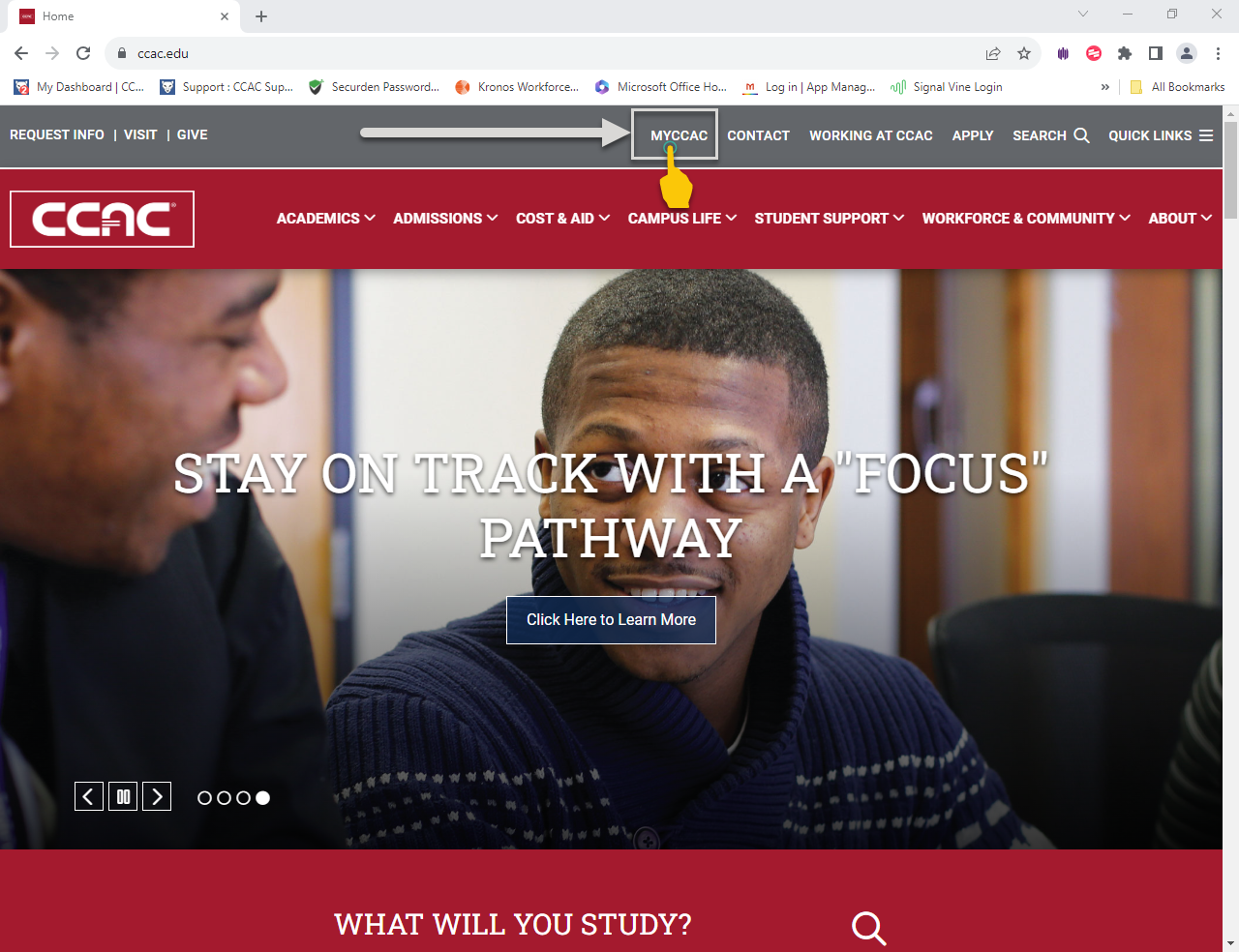
- Enter your CCAC email address and click Next
- Enter your Password and click the Sign In button
- You will then be taken to your MyCCAC dashboard
How to use the Video Call Center
-
Fill out the form with your information

Your Full Name is required to continue, but adding additional details can help the person you are connecting with support you better. For example, providing your Email Address will provide a way to continue communication in case of a sudden disconnect.
-
Select the department you would like to meet with using the drop-down menu

- If you have a specific person in that department you want to connect with, select the ‘I already know’ option, then select their name from the drop-down menu
- If you do not have a specific person to meet with, select the location, or the ‘I need to find a tutor by subject’ option
-
Select the location where you would normally meet with someone or the subject you would like tutoring in through the drop-down menu

-
Check the box consenting to being recorded, and then click Connect Now

Navigating the Video Call Center

1 - Sign Out
Click here to sign out and end the video session
2 - Chat
Click here to open a chat box that will allow you to type to the person you are meeting with. You can hit Enter or click to send typed messages. A tone will play if you receive a response in the chat.

3 - Share Screen
This will allow you to share your screen with the person you are meeting. Clicking this will open a pop-up that lets you choose which tab, window, or screen to share. 
4 - File Share
This will allow you to upload files to share. After clicking this option, a pop-up will appear.

- Load File - This will allow you to upload a file from your computer to the Video Call Center.
- My Files - The area under My Files shows all the files you have uploaded and gives you the option to share them with the meeting by clicking the green document with an up arrow on it, or delete the file by clicking the red document with an X on it.
- Files you have uploaded in the Shared Files section can be deleted by clicking the red document with an X on it.
- Files that have been shared with you in the Shared Files section can be downloaded by clicking the green document with a down arrow on it.
5 - Audio On
Click here to toggle your microphone on or off within the Video Call Center.
6 - Video Off
Click here to toggle your camera on or off within the Video Call Center.
7 - Settings
This will open the settings for the Video Call Center, allowing you to make changes to the selected audio or video devices, test your audio, or add a virtual background.

8 - Full Screen
Click here to go into full-screen mode. You can click here again or press the escape key to go back to normal.
Troubleshooting
Other video apps may take control of your camera during meetings if they are open. To ensure the Video Call Center can access your device's camera and microphone, please avoid joining other meetings or having other programs that use your camera and microphone open while using the Video Call Center.
Camera or Microphone access issues
The Video Call Center needs to have access to your camera and microphone to function properly. Different browsers may have different steps to ensure camera and microphone access. Chrome is the suggested browser.
Below are some troubleshooting steps for the most common browsers.
The Google Chrome Help page has troubleshooting steps for camera and microphone issues occurring in the Chrome browser.
The Mozilla Support article titled ‘How to manage your camera and microphone permissions with Firefox’ has troubleshooting steps for microphone and camera issues in Firefox.
The Microsoft Support website has information on ‘How to allow a website to use your camera or microphone while browsing in Microsoft Edge’.