What is an event?
Events in Calendly are templates for meetings that allow you to set parameters such as time, location, and meeting purpose for others to access and book available slots based on your availability.
Don't forget to connect your applications to Calendly
Calendly can connect to many applications you may want to integrate, such as Outloook, Teams, and Zoom. If you allow booking for virtual appointments through Calendly, connecting Teams or Zoom will create meetings automatically. Allowing Calendly to have access to your Outlook calendar is strongly suggested, as then it can automatically not show available time slots for when you are busy based on your Outlook calendar. The steps to follow for setting up this integration are available on the Reconnecting your Calendar to Calendly using Office365 article in the Help Center.
Selecting Event Types
What are event types?
Calendly event types are reusable meeting templates designed to simplify scheduling. They let you set up different kinds of meetings with customized settings for how the scheduling takes place. The most recent information on these event types can be found on the Event Types Overview page of the Calendly website.
 |
One-on-One |
Let an invitee pick a time to meet with you. You and one other person can meet. This meeting can be forwarded through Outlook, but that forward would not be documented in Calendly. |
 |
Group |
Let multiple invitees meet with you at one time. You and multiple people can meet. You will get to specify the quantity of people to meet. |
 |
Collective Host |
An event with another person and let invitees pick a time when you’re all available. Calendly will look at everyone attending the meeting (who are Calendly user's) and provide the end user with a time everyone is free. |
 |
Round Robin |
Create an event that cycles between multiple hosts. This will cycle through the Calendly users assigned to the event. You can base this on priority, each person, or equally distributed work. |
From the ‘What event is this?’ Event section in Calendly
The most recent information can be accessed through Calendly's website
The information presented here is still relevant, but if you would like to have the most recent information, straight from Calendly, you can go to their website and look at articles such as “How to customize your event types”.
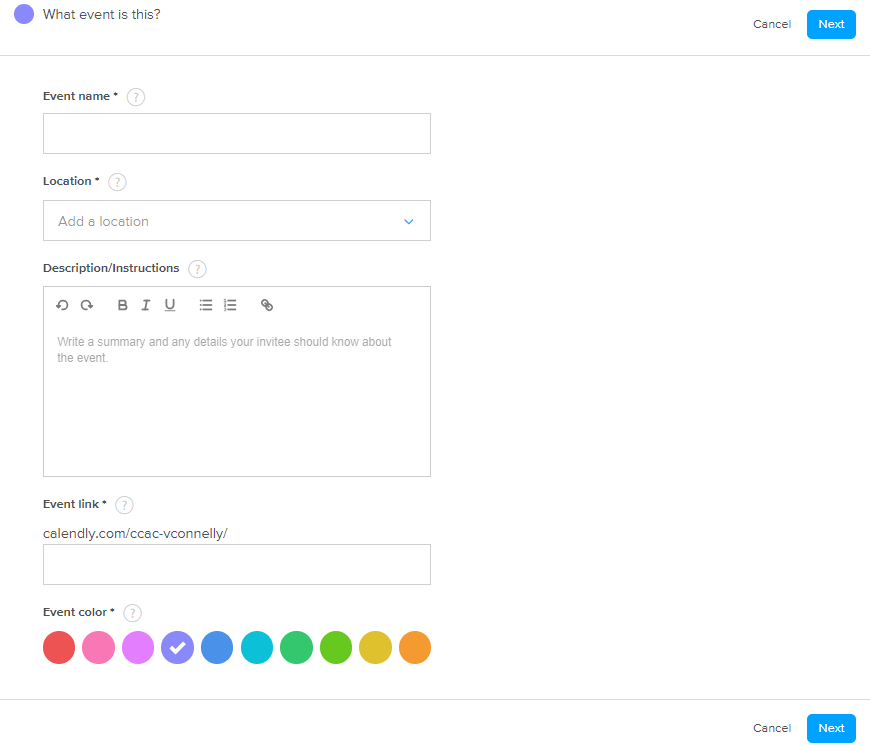 Event Name
Name your event. This will be reflected in the emails/calendar invitations and titles.
Location
Where you choose your location
In-person meeting
Be specific, "South Campus B405" - Keep in mind most email/calendar systems have map context awareness. If you put the address, it will give them a link with driving instructions.
Phone call
You can ask the invitee to call you, or you can call them
Zoom
Have Zoom automatically create a Zoom URL for you and have your settings already set up. You must have the Zoom integration turned on.
Custom
You can write what you want in the location or paste a specific meeting URL.
Ask invitee
Have the invitee put where to meet.
Adding multiple locations
Click the Add a location option to allow choices where to meet.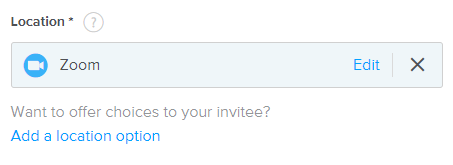
Description and Instructions
Place the description of the meeting. If there are things someone needs to do beforehand or parking directions, please include them here as well. You can add bullets, lists, links, and other details that may be helpful for the event.
Event Link
Customize the URL for your event. Typically, it will be the name of your event.
Event Color
Customize the color of your event. For example: all Zoom meetings are blue
Common reasons events might not show as available
More information on other common issues and their troubleshooting steps is available on the Calendly website in the section titled ‘Fix a Problem’.
Marked as "busy" on your Calendar
Where the event is supposed to be you may have an event to "hold the spot" or you may have an all-day event setup that is not allowing for Calendly to provide an open date.
Solid left lines beside the event are indicators your calendar event is marked busy.
Date Range is Set Wrong
Depending on how your event was setup, you may not have the correct date range or future access.
It's not listed in the times available calendar

Setting up availability for events
Please see the step-by-step guide on setting availability from Calendly to ensure people can book events with you only when you want them to.